Install on a Mac
About five minutes. You need to do it once, signed in as the person who will use PixelScribe.
A Mac with an Apple chip
M1 or later. To check, open the Apple menu and choose About This Mac. Next to Chip it should say Apple M1, M2, M3, M4 or later.
The PixelScribe file
PixelScribe_0.1.0_aarch64.dmg, 514 MB. Download it in step 1, or use the copy your IT team gave you.
About 1 GB of free space
The speech engine is inside the app, so it downloads nothing later and needs no internet.
-
Download PixelScribe
Download for MacPixelScribe_0.1.0_aarch64.dmg · 514 MB
The file goes to your Downloads folder. It is large, so it can take a few minutes.
If your IT team gave you the file, skip this step.
-
Open the file and drag PixelScribe into Applications
Double-click
PixelScribe_0.1.0_aarch64.dmgin your Downloads folder. A window opens with PixelScribe and your Applications folder.Drag the PixelScribe icon onto the Applications folder. It copies in a few seconds.
When it has copied, eject the PixelScribe disk: click the eject button next to PixelScribe in the Finder sidebar.
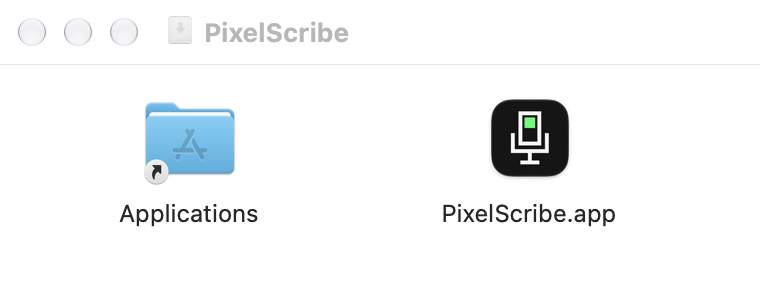
Drag PixelScribe onto Applications. -
Open PixelScribe
Open your Applications folder and double-click PixelScribe. Or press ⌘ Command+Space, type PixelScribe and press Return.
The first time, macOS may ask whether you are sure you want to open an app downloaded from the internet. Click Open. PixelScribe is signed by Pixel Ventures and checked by Apple.
-
Allow the microphone and Accessibility
PixelScribe asks for two things the first time it opens:
- Microphone Access: click Grant Permission. When macOS asks if PixelScribe may use the microphone, click Allow.
- Accessibility Access: click Grant Permission, then Open System Settings in the message that appears. Turn on the switch next to PixelScribe and confirm with your password or Touch ID. Then come back to PixelScribe.
Each card changes to Granted, then PixelScribe says All set! and opens.
Why Accessibility? It is what lets PixelScribe type your words into other apps. macOS asks for it for any app that types for you. On macOS 27 the same page in System Settings is called Device Control and Data Access.
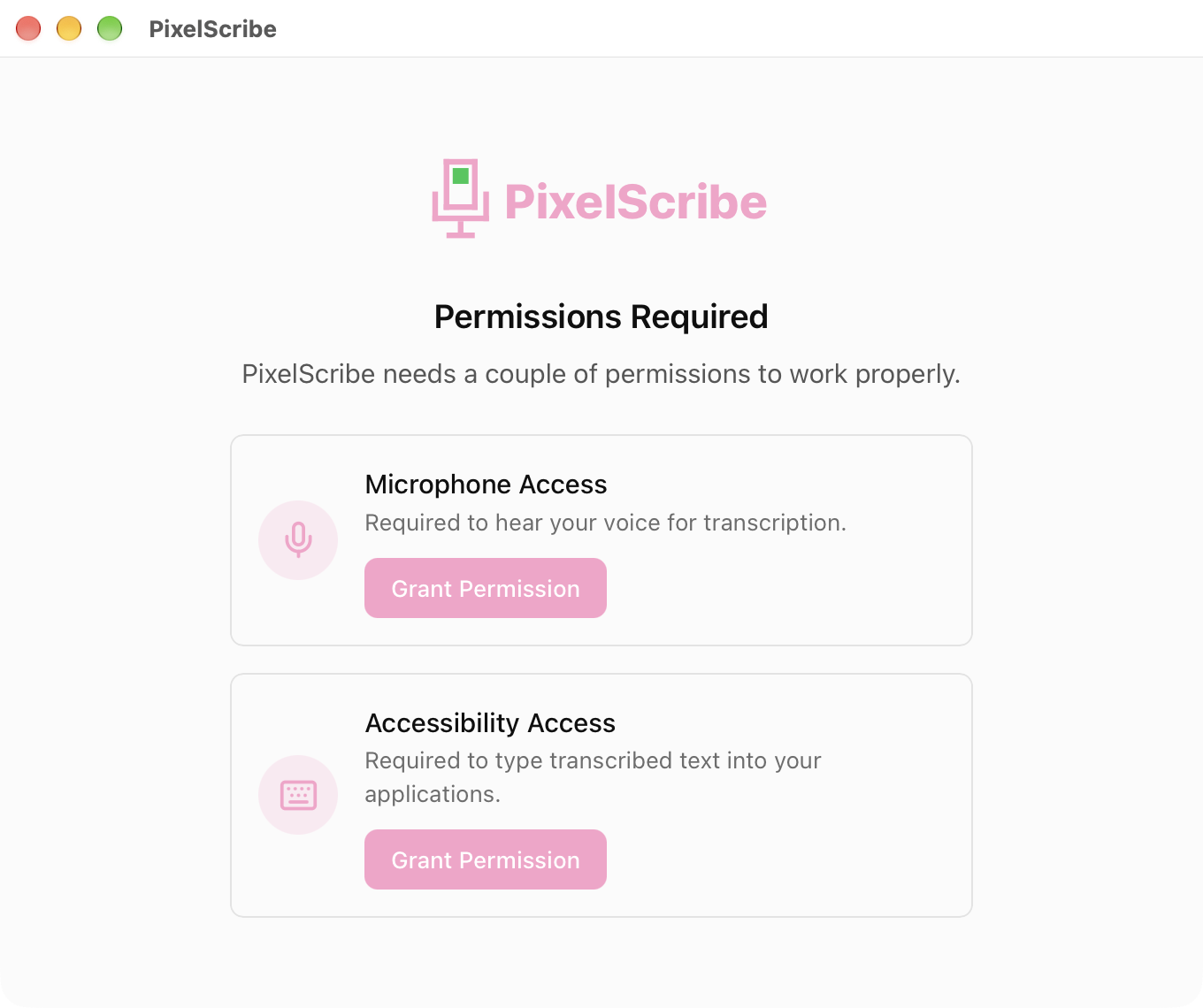
The first screen. Click each Grant Permission button. -
That's it. PixelScribe is ready
The PixelScribe window shows your shortcut: Option+Space.
You can close the window. PixelScribe keeps running in the menu bar at the top of your screen, as this icon:
 .
.To have PixelScribe start by itself when you log in, click Advanced in this window and turn on Launch on Startup. Otherwise, open it from Applications after you restart your Mac.
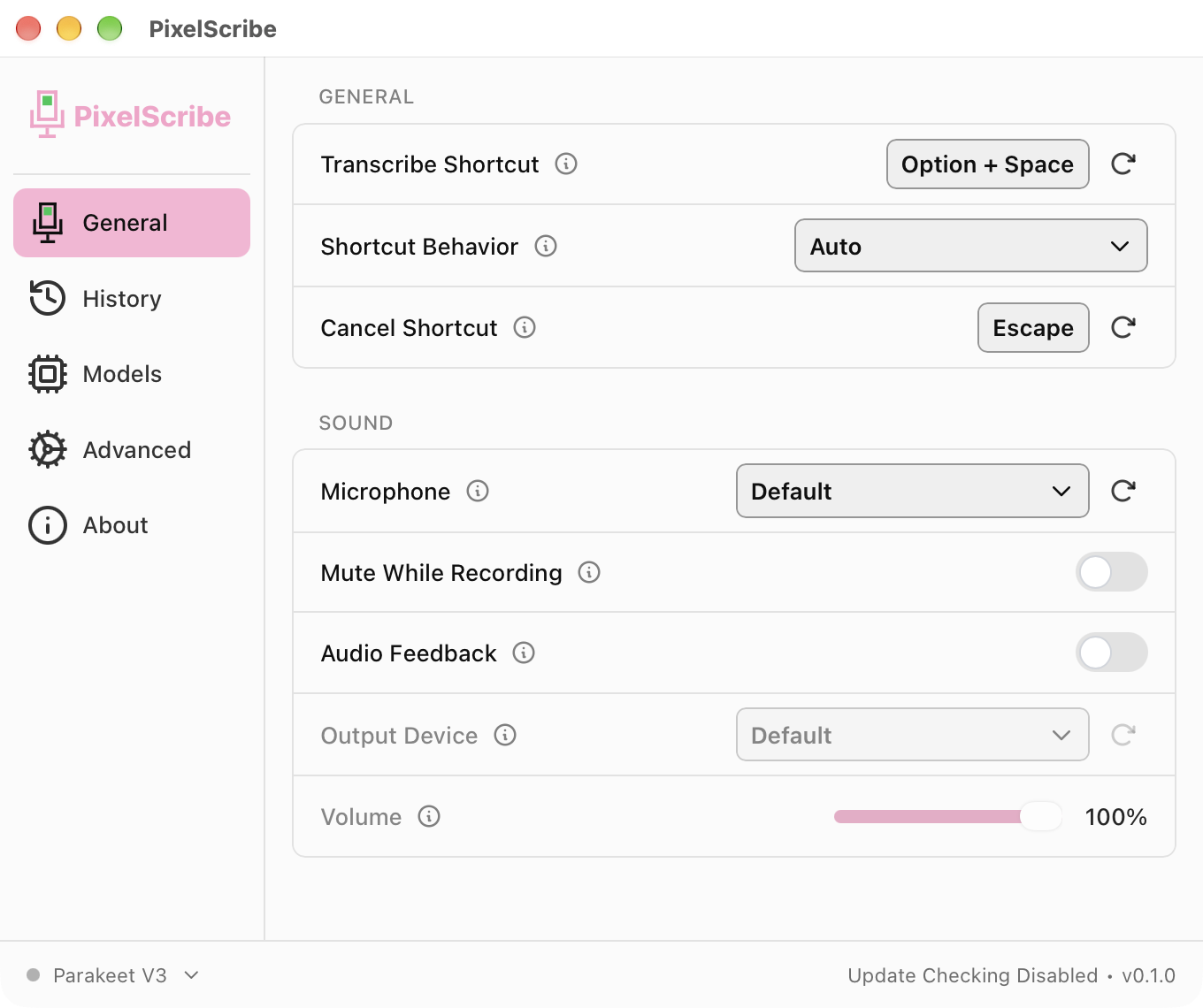
Ready. Your shortcut is Option + Space.
Use it every day
PixelScribe works in any app you can type in: email, documents, chat, forms, the browser.
Dictate
- Click where you want the words to go.
- Hold Option+Space and speak.
- Let go. Your words are typed where your cursor is.

Talk for longer
Tap Option+Space once, quickly, and speak for as long as you like. Tap it again to stop. No need to hold the keys.
Change your mind
Press Esc, or click the × on the bar. Nothing is typed.
Open the window again
Click the PixelScribe icon in the menu bar, then Settings…
Change the shortcut
On the General page, click Option + Space next to Transcribe Shortcut, then press the keys you want instead.
Teach it names and terms
On the Advanced page, under Custom Words, type a word it gets wrong, such as a product, customer or place name, and click Add.
Find something you said
The History page keeps your last 5 recordings with their text, so you can copy one again. The menu bar icon also has Copy Last Transcript. To keep more or fewer, change History Limit on the Advanced page.
If something is wrong
The bar shows, but nothing is typed
Accessibility is off. Open System Settings → Privacy & Security → Accessibility (on macOS 27: Device Control and Data Access) and turn on PixelScribe. If it is already on, turn it off and on again.
Words are missing or wrong
Check the microphone. Open System Settings → Privacy & Security → Microphone and turn on PixelScribe. Then, on PixelScribe's General page, pick the right one under Microphone. Speak at a normal pace, close to the microphone.
Option + Space does nothing
Another app may use the same keys: choose different ones (see Change the shortcut). While a password box is selected, macOS blocks shortcuts for every app; click somewhere else and try again.
The icon is not in the menu bar
PixelScribe is not running. Open it from Applications. To stop this happening after a restart, turn on Launch on Startup on the Advanced page.
Remove it
Click the PixelScribe icon in the menu bar and choose Quit. Then drag PixelScribe from your Applications folder to the Trash.
For IT: the Mac file, its checksum, and a silent install
The file
| File | Size | SHA-256 |
|---|---|---|
PixelScribe_0.1.0_aarch64.dmg | 514 MB | 155994abefaa48cf0010314a33c4e886ef2332d6cc17b78d66ef571f71a24523 |
Click the file name to download it. Every version is also on the PixelScribe releases page.
Apple silicon only. The app and the disk image are signed with Developer ID Application: Pixel Ventures LLC (LM3P28DNVQ), notarized by Apple and stapled, so Gatekeeper accepts them with no warning and no internet check.
Check the file
shasum -a 256 PixelScribe_0.1.0_aarch64.dmgInstall without the drag
Mount the disk image, then copy the app:
ditto "/Volumes/PixelScribe/PixelScribe.app" /Applications/PixelScribe.appThe microphone and Accessibility steps still need each person's own account. A device management (MDM) privacy profile can pre-approve Accessibility for the bundle id ai.pixelventures.pixelscribe, team LM3P28DNVQ. macOS lets only the person allow the microphone.
Settings and data
Each person's settings and recent recordings stay in ~/Library/Application Support/ai.pixelventures.pixelscribe/.
Update checks are off in this version, and nothing updates by itself. The next Mac version updates itself, like the Windows version.
Install on Windows
About five minutes. No administrator rights needed: the installer puts PixelScribe in your own account.
Windows 10 or 11, 64-bit
A standard Intel or AMD PC. To check, open Settings → System → About. System type should say 64-bit, x64-based processor.
The PixelScribe file
PixelScribe_0.1.1_x64-setup.exe, 471 MB. Download it in step 1, or use the copy your IT team gave you. (Your IT team may install it for you instead.)
About 1 GB of free space
The speech engine is inside the app, so it downloads nothing later and needs no internet.
-
Download PixelScribe
Download for WindowsPixelScribe_0.1.1_x64-setup.exe · 471 MB
The file goes to your Downloads folder. It is large, so it can take a few minutes.
Your browser may say the file is not commonly downloaded and ask whether to keep it. Choose to keep it. The reason is the same as for the warning in the next step: PixelScribe is new, so Windows has not seen it on many computers yet.
If your IT team gave you the file, or installs PixelScribe for you, skip this step. Installing for every account on a PC? The
.msiis under For IT at the bottom of this tab. -
Open the installer
Double-click
PixelScribe_0.1.1_x64-setup.exein your Downloads folder.If a blue box says Windows protected your PC, click More info, then Run anyway.
Why the warning? The installer is signed by Pixel Ventures LLC, and after More info the box names Pixel Ventures LLC as the publisher. Windows still shows this box for an app it has not yet seen installed on many computers, and it stops showing it as more people install PixelScribe. Only click Run anyway when the publisher says Pixel Ventures LLC.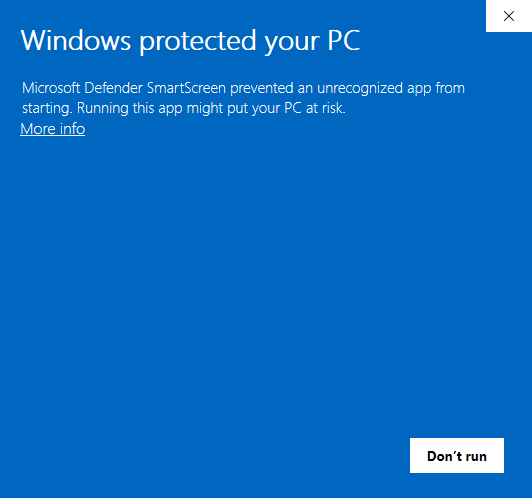
First, click More info. 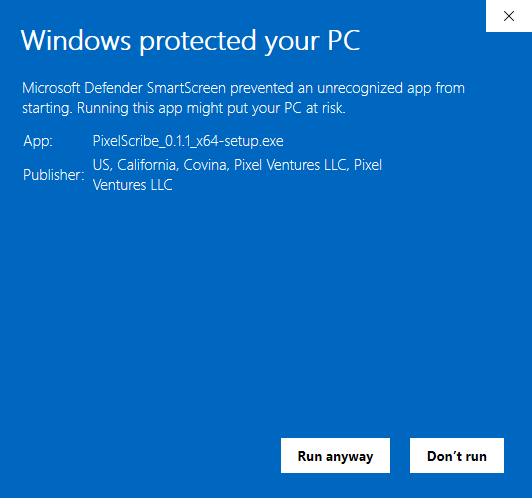
Then click Run anyway. -
Click through the installer
Four screens. Keep every choice as it is and click the highlighted button. When the green bar is full and it says Installation Complete, click Next once more.
PixelScribe installs in your own account folder, so it needs no administrator rights. The installer ticks Create desktop shortcut for you; untick it if you don't want one.
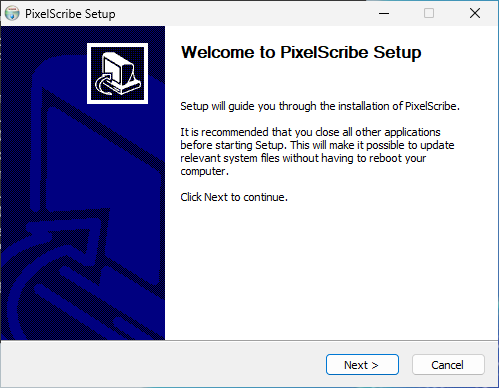
1. Welcome: click Next. 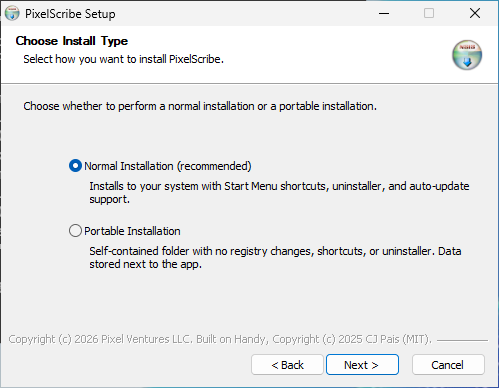
2. Install type: keep Normal Installation, click Next. 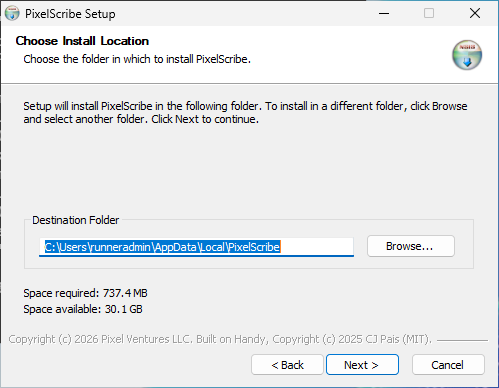
3. Location: keep the folder, click Next. It installs in about a minute. 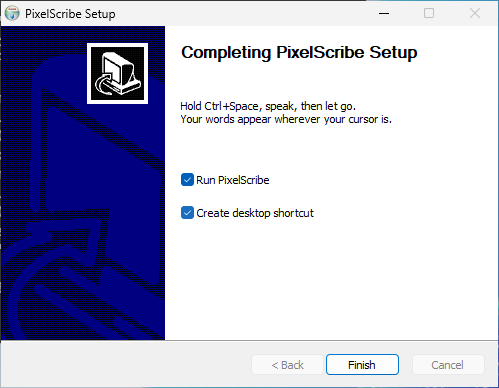
4. Done: leave Run PixelScribe ticked, click Finish. -
That's it. PixelScribe is ready
PixelScribe opens ready to use, with no setup screens. Your shortcut is Ctrl+Space.
You can close the window. PixelScribe keeps running near the clock, at the bottom right of the screen. Windows often tucks new icons away: click the ^ arrow to see it.

The PixelScribe icon, in the hidden icons above the ^ arrow.
To have PixelScribe start by itself with Windows, click Advanced in this window and turn on Launch on Startup.
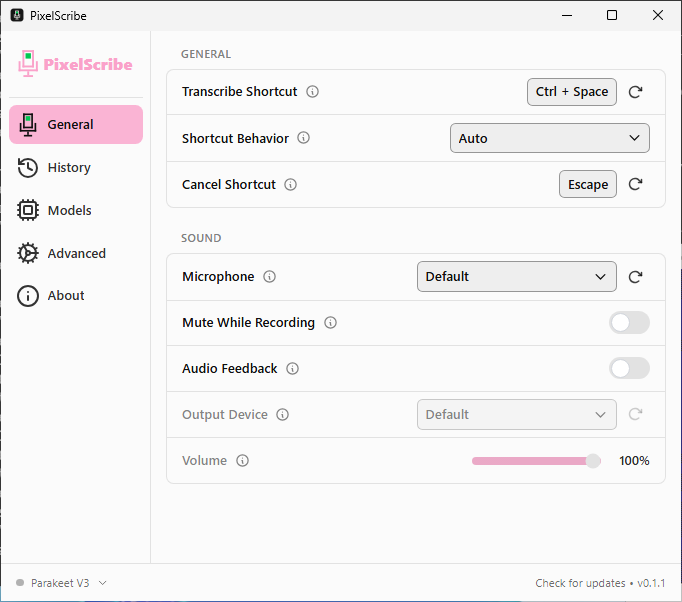
Ready. Your shortcut is Ctrl + Space. -
Next time, open it from the Start menu
Click Start, type PixelScribe, and click it. You can also use the desktop shortcut.
If you have turned on Launch on Startup, you will not need to: it starts when you sign in.
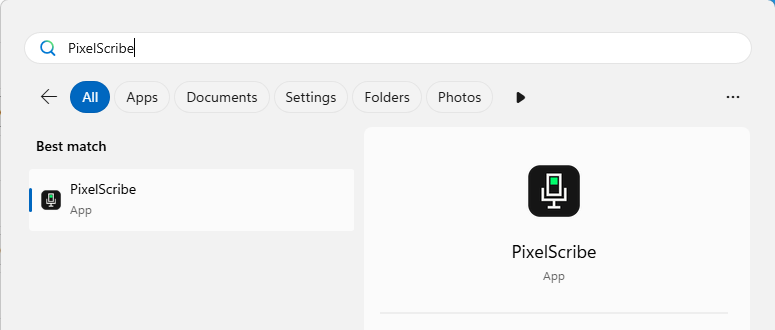
Start menu search. -
Only if PixelScribe cannot hear you: allow the microphone
Windows normally lets programs use the microphone, so most people skip this step.
If PixelScribe says it cannot use the microphone, open Settings → Privacy & security → Microphone and turn on Microphone access and Let desktop apps access your microphone.
If those switches are greyed out, your organization manages this computer: ask your IT team.
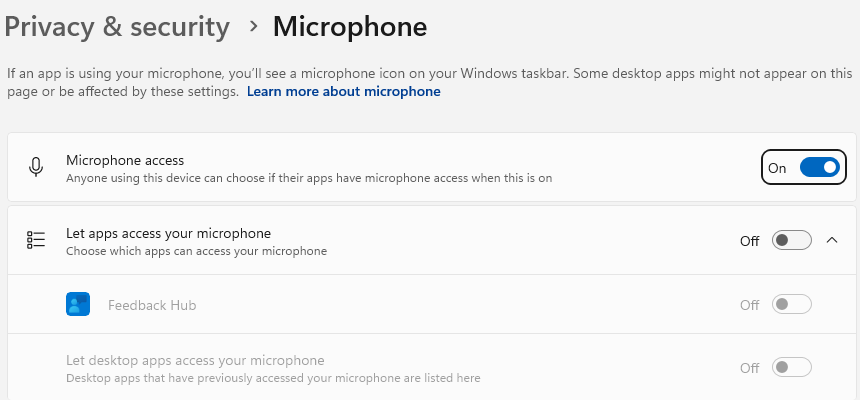
The two switches that matter. On the test computer used for this picture, the second one was greyed out.
Use it every day
PixelScribe works in any program you can type in: Outlook, Word, Teams, forms, the browser.
Dictate
- Click where you want the words to go.
- Hold Ctrl+Space and speak.
- Let go. Your words are typed where your cursor is.
Talk for longer
Tap Ctrl+Space once, quickly, and speak for as long as you like. Tap it again to stop. No need to hold the keys.
Change your mind
Press Esc, or click the × on the bar. Nothing is typed.
Open the window again
Click the PixelScribe icon near the clock, at the bottom right of the screen, then Settings… If you cannot see it, click the ^ arrow to show hidden icons.
Change the shortcut
On the General page, click Ctrl + Space next to Transcribe Shortcut, then press the keys you want instead. Excel users: Excel also uses Ctrl+Space, to select a column, so you may want to pick other keys.
Teach it names and terms
On the Advanced page, under Custom Words, type a word it gets wrong, such as a product, customer or place name, and click Add.
Find something you said
The History page keeps your last 5 recordings with their text, so you can copy one again. The tray icon also has Copy Last Transcript. To keep more or fewer, change History Limit on the Advanced page.
It keeps itself up to date
PixelScribe checks for a new version when it opens and every few hours, and downloads it in the background. When one is ready, the bottom of the window says Restart to update. Click it: a small progress window appears for a few seconds, and PixelScribe comes back on the new version. The icon by the clock offers the same thing. Until you click it, you keep using the version you have.
To turn this off, switch off Check for Updates on the Advanced page.

If something is wrong
PixelScribe says it cannot use the microphone
Turn on the two microphone switches in Windows Settings: see the last install step above. If they are greyed out, your organization manages this computer: ask your IT team.
Words are missing or wrong
On PixelScribe's General page, pick the right one under Microphone, for example your headset rather than the laptop's built-in microphone. Speak at a normal pace, close to the microphone.
The bar shows, but nothing is typed
Click inside a text box first, so there is a cursor. PixelScribe cannot type into a program that was started with Run as administrator.
Ctrl + Space does nothing
Another program may use the same keys, such as Excel or a keyboard-language switcher. Choose different ones (see Change the shortcut).
The icon is not near the clock
PixelScribe is not running. Open it from the Start menu. To have it start with Windows, turn on Launch on Startup on the Advanced page.
Remove it
Open Settings → Apps → Installed apps, find PixelScribe, click ⋯ and choose Uninstall. On Windows 10: Settings → Apps → Apps & features.
For IT: the two Windows files, checksums, and silent installs
The files
| Use it for | File | Size | SHA-256 |
|---|---|---|---|
| One person, no admin rights | PixelScribe_0.1.1_x64-setup.exe | 471 MB | 193f344ef523443b43e3c887913f6fb5c2eeea5e533dfe7b18c1cb87b2565a3c |
| The whole machine (admin) | PixelScribe_0.1.1_x64_en-US.msi | 515 MB | f7937fed778ccb047273312bb4961c762b8b812f2539eea567136f4a7a111166 |
Click a file name to download it. Every version is also on the PixelScribe releases page.
Both files are signed by Pixel Ventures LLC (Microsoft Artifact Signing, Public Trust). To check a file's signature:
Get-AuthenticodeSignature .\PixelScribe_0.1.1_x64-setup.exe | Format-List Status, SignerCertificateCheck a file
Get-FileHash .\PixelScribe_0.1.1_x64-setup.exe -Algorithm SHA256Silent install, one person (run as that person)
PixelScribe_0.1.1_x64-setup.exe /SSilent install, whole machine (as administrator)
msiexec /i PixelScribe_0.1.1_x64_en-US.msi /qnSettings and data
PixelScribe opens ready, with no setup screens. Each person's settings and recent recordings stay in %APPDATA%\ai.pixelventures.pixelscribe\. Windows normally lets desktop apps use the microphone; if your policy turns that off, PixelScribe cannot hear anyone.
Updates
PixelScribe updates itself. It reads https://github.com/BespokeWoodcraftStudio/PixelScribe-releases/releases/latest/download/latest.json when it opens and every 6 hours, downloads a newer installer in the background, checks its signature against the Pixel Ventures update key built into the app, and runs it when the person clicks Restart to update. The check sends nothing about the person. A per-person install (the setup.exe) updates with no administrator rights. A whole-machine install (the .msi) asks for administrator approval to update, so if your people cannot approve it, turn updates off and deploy each new .msi yourself.
To turn updates off for everyone on a PC, set the machine environment variable PIXELSCRIBE_DISABLE_UPDATER=1, by Group Policy or as administrator:
setx /M PIXELSCRIBE_DISABLE_UPDATER 1Each person can also switch off Check for Updates on the Advanced page.
What PixelScribe keeps, and what it never does
The same on Mac and Windows.
It keeps
Your settings, and your last few recordings with their text (5 unless you change it), in your own account on this computer.
It never
Sends your voice or your words anywhere, contacts an AI service, or needs an internet connection. Its optional online clean-up step is switched off. The only thing it fetches is the update check, which sends nothing about you.
Updates
On Windows it updates itself: new versions download in the background and finish when you restart it, and each one is checked against Pixel Ventures' signature first. You can switch this off on the Advanced page. The Mac version gets the same in its next release.